Cohley Collaboration Suite is comprised of four tools designed to streamline your enterprise team’s creative feedback workflow:
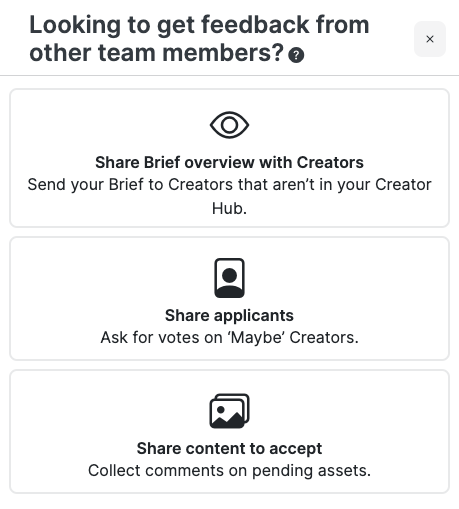
Share Brief Overview
Have Creators you want to work with that aren't in Cohley? Effortlessly invite external creators to collaborate on specific briefs with a simple shared URL. No login required—anyone with the link can access the brief overview and get started.
Viewer will be able to see the creative brief as if they were a Cohley Creator. They will then be prompted to login or create a Creator account. This page will be live for 30 days after your set apply by date.
Still in draft? The share link above is for a brief you have launched. To get feedback on a brief before you launch it, download the draft as a PDF and send that — whoever you send it to does not need a Cohley account.
Share Applicants
Simplify your creator vetting process with Share Applicants. Generate a URL with all Creators marked as Maybe to share applicant details with your team for collective voting. By default, collaborators can review each applicant’s Highlights, portfolio, brand reviews, Cohley work, notes, application message, and social links — and you can choose which of those to include (see Choosing what collaborators see about a Creator below). They can give a thumbs up or thumbs down, leave comments, and see a summary of overall sentiment—‘liked’, ‘split’, ‘not liked’, or ‘not decided’—to streamline your final selection process. This page will be live until all Creators are in the completed stage.
The link stays current. Creators you mark as Maybe after you've shared it are added to the same URL automatically — you don't need to generate a new link, and your collaborators don't need a new one. They'll see the newly added Creators the next time they open or refresh the page.
Share Content to Accept
Keep your content review process transparent and collaborative. All content uploaded by creators is automatically added to a shareable URL. Collaborators can provide real-time feedback and see others' comments. Reject unwanted assets directly in Cohley, and consolidate all feedback into a single change request per asset to ensure everything meets your brief's standards before accepting the content. This page will be live until all Creators are in the completed stage.
To handpick content that is shared see How to share specific assets in Content Collaboration.
Share Library
Share your entire Cohley content library with anyone on your team. When your library is shared, collaborators can access every asset and its reviews across all of your briefs in one place, and can search, filter, and export content. Like the rest of the Collaboration Suite, anyone with the link can view—no login required.
Collaborators who enter their email and subscribe to updates will be notified whenever new content is added to your library, so stakeholders always have an up-to-date view.
Share Library is all or nothing. There is one library link and it covers your whole library — there's no way to generate a link scoped to a single brief, or to a folder or subset of the library. If a stakeholder only needs one brief's content, share via export, Google Drive, or Slack.
Click on Collaborate to get started!

Choosing what collaborators see about a Creator
When you share applicants for voting, collaborators see everything Cohley has on each Creator by default. You can narrow that down before you send the link.
From the brief, click Collaborate, then Configure sharing. Under Share applicants you’ll see Select what you want collaborators to view, with a checkbox for each of:
- Highlights
- Portfolio
- Brand reviews
- Cohley work
- Notes
- Application message
- Social links
- Social profile (Influencer Partnership briefs)
- Social metrics (Influencer Partnership briefs)
Which options you see depends on the brief type: most briefs show the first seven, and Influencer Partnership briefs add Social profile and Social metrics, since those briefs are built around a Creator’s social presence. Everything is checked to begin with — uncheck anything you’d rather keep internal and click Save. This is useful when the link is going outside your immediate team — scoping a legal or compliance review down to the essentials, or keeping your own notes private before a wider stakeholder vote.
Your notes are shareable. This is the option to know about if you want collaborators to have context that isn’t already on a Creator’s profile — your own take on why a Creator is a fit, what you’d want from them, or anything your team flagged while vetting.
To add one, click the notes icon on the Creator’s card. A Notes panel opens from the side; type your note and press enter to save it. Notes are shared with your team rather than private to you, and they stay with the Creator — the same note appears on that Creator in Creator Hub and on your other briefs, so vetting context you capture once is there the next time that Creator applies.
Leave Notes checked in Configure sharing and collaborators will read your notes alongside the portfolio and the votes. Uncheck it when you want the notes to stay internal — for example on a link going to stakeholders outside the team that wrote them.
Your chat with a Creator is never shared. Direct messages between you and a Creator stay private to your account. Chat isn’t one of the options above and doesn’t appear in any collaboration view.
Two controls that are easy to mix up: Configure sharing governs what information is shown about a Creator, while Share specific assets governs which assets collaborators see — see How to share specific assets in Content Collaboration.
Want to leave your own comment and not a note that stays with the Creator?
Access the collaboration link first and add your comments per Creator! If your comments are meant to guide your colleagues, say so when you send the link. Left to the default, they’ll vote blind and may never open View Summary, so context you left to steer them goes unread. A line in your email or message — “read my comments under View Summary before you vote” — is usually enough.
The shared view is built for unbiased voting: by default it doesn’t show you what other collaborators have said before you weigh in, so nobody is anchored by the first opinion in the room. To see everyone else’s votes and comments — and the overall sentiment for each Creator — click View Summary.
That’s usually why a comment looks like it hasn’t appeared. It saved; the default view is simply holding others’ input back. Open View Summary and it’s there. Comments are attached to the individual Creator or asset they were left on rather than collected in one feed, so look at that same Creator — and refresh if you’ve only just left the comment.
Nothing you or your collaborators leave is ever lost. Votes, comments, and change requests stay attached to the Creator and the content inside Cohley, even after the collaboration link itself closes.
Email notifications are opt-in per collaborator. A collaborator is only emailed about new activity if they entered their email address and subscribed to updates when they opened the link. If nobody on your team subscribed, no notifications go out — the comments are still saved and visible in the shared view, so check there rather than your inbox. In-app, collaboration feedback also appears under the notification bell in your Cohley dashboard.
If you’ve checked the same Creator in the same shared view, refreshed, and a comment you saved still isn’t appearing, contact your Cohley Customer Success Manager or Cohley Support.
When collaboration links are no longer available
Every collaboration link is tied to the state of your brief rather than to a separate expiration setting, so a link closes on its own once the brief has moved on. An expired link cannot be renewed or reactivated, and collaborators who open one will see an error page instead of the brief, the applicants, or the content.
| Collaboration tool | Link stays live until |
| Share Brief Overview | 30 days after your apply by date |
| Share Applicants | the brief moves to Past |
| Share Content to Accept | the brief moves to Past |
A brief moves to Past once its submit by date has passed and the work is fully resolved — for paid briefs, that means every Creator has been paid; for product-only briefs, that every Creator is in the Applicant or Completed stage. Until then, your Share Applicants and Share Content to Accept links stay live.
If you still need to collaborate
While the brief is still active, click Collaborate on the brief to retrieve the link. If the brief has already moved to Past, move the dates to the future to re-open the brief.
Nothing is lost when a link closes: the votes, comments, and change requests your collaborators left stay attached to the creators and content inside Cohley.
Additionally, the Content Library is not lost if you terminate your relationship with Cohley. You shared library link will continue to work for at least a year. However, Cohley does not guarantee longterm storage of your assets and reserves the right to delete them after at least one year past an active license.
Are collaboration links Cohley-branded?
Yes. Every link in the Collaboration Suite — Share Brief Overview, Share Applicants, Share Content to Accept, and Share Library — opens a Cohley-branded page. Collaborators see the Cohley logo, and the link itself is a Cohley URL. What you can control is how much is shown about each Creator, and which assets are shared to review.
If a link is going to a client or an external stakeholder, it’s worth naming Cohley when you send it. A one-line “this opens in Cohley, the platform we use for creator sourcing and content review” lands better than explaining the logo afterwards.
Was this article helpful?
That’s Great!
Thank you for your feedback
Sorry! We couldn't be helpful
Thank you for your feedback
Feedback sent
We appreciate your effort and will try to fix the article