The Content Library is where every approved asset from your campaigns lives — images, videos, and reviews you can use in perpetuity. You can download a single asset directly, or grab a batch at once and either receive it as a zip or push it straight to Slack, Yotpo, TikTok, or Google Drive.
How do I download a single asset?
- Click on Content Library from the main navigation.
- You'll land on the Assets tab, which shows your content organized in folders (grouped by brief, by default).
- Use the search bar (Creator, Product, or Brief name), the Filters button, or the Sort by / View by dropdowns to narrow things down.
- Click into the folder that contains the asset you want.
- Click the asset to open it, then click Download.
The file downloads to your browser's default location at its original (full-resolution) size — Cohley doesn't transcode or compress on download. The image or video itself is untouched, but it saves under a Cohley filename rather than the creator’s original one — see How are downloaded files named? below.
How do I download multiple assets at once (bulk export)?
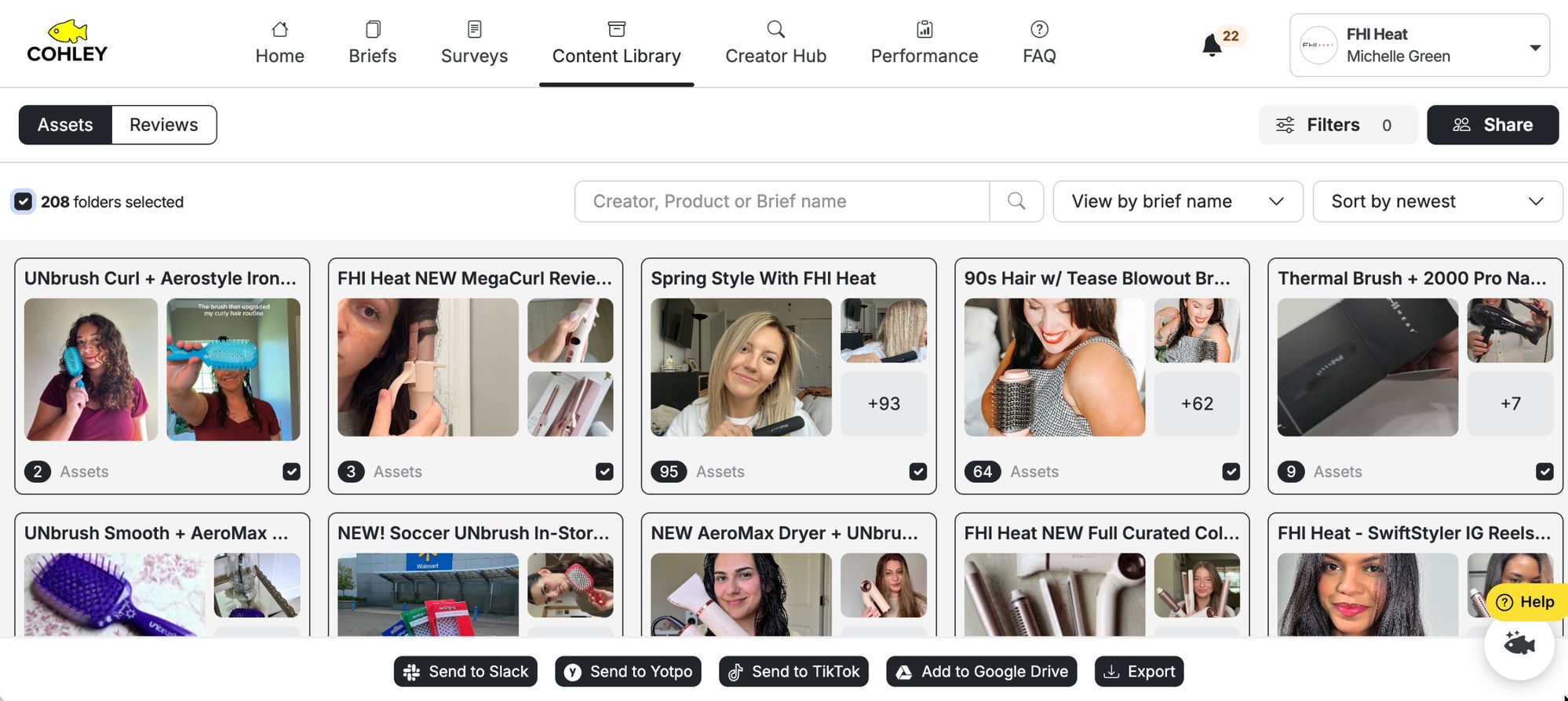
For more than one asset, use the bulk export flow from the floating action bar at the bottom of the page:
- Click on Content Library from the main navigation.
- On the Assets tab, apply any filters, search, or sort you want to narrow the view (e.g., a specific brief, a single creator, a date range).
- Check the boxes on the folders or individual assets you want to export. The header will update to show how many you've selected (e.g., "208 folders selected").
- In the floating action bar at the bottom of the page, click Export.
- Confirm the email address the zip should be sent to. We recommend using the email of the person who actually needs the files (often the brand stakeholder, not just whoever happens to be logged in).
- Submit the request.
You'll receive an email with a link to your zip file once it's packaged. Large exports can take a few minutes to generate — you don't need to keep the tab open while it processes.
What file formats do I get?
You'll receive the creator’s original file contents — same format, full resolution, no transcoding or compression:
- Photos: typically JPG or PNG
- Videos: typically MP4 or MOV
Cohley doesn't transcode or compress assets on download. If you need a specific size or aspect ratio, you can crop images directly within the Content Library before downloading — look for the crop option on the asset detail view. See What happens after I crop an image? below.
What happens after I crop an image?
Cropping saves the cropped version as a new asset in your Content Library. It isn't only a download step — once you crop, you have two assets.
- The cropped copy is added to the same folder as the original, under the same brief, with the same status. You'll see it in the Content Library alongside the original, not only in your downloads.
- Your original is never changed or replaced. It stays in the library at its full original resolution, and cropping does not remove it.
- The copy is saved at its new dimensions — so an asset cropped to a square is stored as a square, and the original keeps its original shape.
- Each has its own file ID, so when you download both you get two separate files rather than one overwriting the other — see How are downloaded files named? below.
Cropping is available for images. If you need a different aspect ratio of the same image more than once, you can crop the original again — each crop is saved as its own asset.
The one thing that does change is the filename. Downloads are not delivered under the creator’s original filename — Cohley renames every file on the way out.
How are downloaded files named?
Cohley renames files on download so they arrive ready to use, instead of arriving with whatever the creator’s phone or camera called them. Every file follows the same pattern:
You do not receive the creator’s original filename. Cohley replaces it on every download and export, including single downloads, zip exports, and pushes to Slack, Google Drive, and TikTok. Only the file’s contents and extension are unchanged — the name is always rewritten.
cohley_[product name]_[creator name]_[file ID].[format]
For example: cohley_daily-moisturizer_jordan-lee_1695875.mov
- Everything is lowercase, and spaces inside a name become hyphens — so “Daily Moisturizer” becomes daily-moisturizer. Punctuation such as apostrophes is dropped.
- Product name — if a brief covers more than one product, each product name is included. Long names are shortened so the filename stays within the 255-character limit.
- Creator name — the creator who submitted the asset, so you can trace any file back to its source.
- File ID — a unique number for that asset, so two files from the same product and creator never collide.
- Format — the original file extension is preserved (.mov, .mp4, .jpg, .png). Cohley doesn’t transcode or compress on download.
You get the same filename whether you download a single asset, export a zip, or push content to Slack, Google Drive, or TikTok — so your files stay consistent everywhere your team works.
Why didn't my zip email arrive?
A few common causes:
- Check spam/junk — the email comes from a Cohley sending domain and can occasionally get filtered. Make sure the email is marked as safe or you will not be able to access the zip file.
- Email typo at submission — the zip is sent to the address entered in the export dialog, not necessarily your account email. If you mistyped, re-run the export.
- Very large export still processing — give it 10–15 minutes for big batches before assuming something went wrong.
- Corporate email filtering — if your company strips zip attachments or external links, the email may be blocked. Try a personal address or have IT whitelist Cohley.
If none of those resolve it, contact support@cohley.com with the assets needed and approximate time you submitted the export.
Can I download content that hasn't been approved yet?
Yes. See Downloading Content to Review.
Can I re-download content later?
Yes. The Content Library is your permanent archive — assets remain available as long as your account is active. You can download the same asset as many times as you need, and your usage rights are in perpetuity.
Who can download content from my Content Library?
Any user on your account can download or send assets. You can also share the library URL for colleagues without an account so they can always access and subscribe to the newest generated content. See Cohley Collaboration Suite: Sharing your brief, vetting Creators, and approving content.
Was this article helpful?
That’s Great!
Thank you for your feedback
Sorry! We couldn't be helpful
Thank you for your feedback
Feedback sent
We appreciate your effort and will try to fix the article